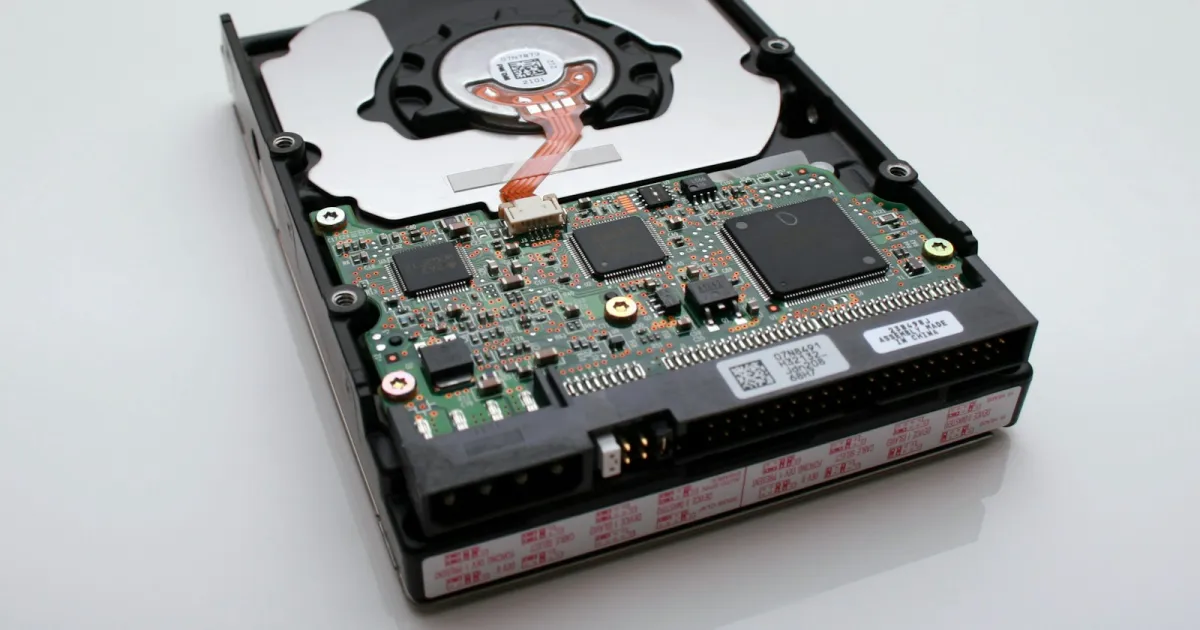
A hard drive usually tells you it's dying. It gets slower, it starts ticking, it logs a few read errors, and then one morning it won't spin up. An SSD often gives no warning at all. It works perfectly on Tuesday and isn't detected by the BIOS on Wednesday.
That difference shapes how you should use each type of drive, how you back it up, and what to do when something feels off.
Two very different machines
A hard disk drive (HDD) is a precision mechanical device. Inside are aluminium or glass platters spinning at 5,400 or 7,200 RPM. Read/write heads on an actuator arm float a few nanometres above the surface, and a spindle motor and a small circuit board with a controller chip run the whole thing.
A solid state drive (SSD) has no moving parts. It's a circuit board carrying NAND flash memory chips, a controller, often a DRAM cache, and firmware. That firmware tracks where every block of data physically lives and spreads writes evenly across the flash, a process called wear levelling.
One is a tiny record player. The other is a small computer. They fail the way those things fail.
How they fail
Hard drives: wear, shock, and gradual decline
Most HDD failures are mechanical or magnetic:
- Head crashes. A bump while the platters are spinning can drop a head onto the surface and scratch it. A laptop knocked off a desk mid-copy is the classic case.
- Spindle bearing wear. Over years, the bearings degrade, causing noise, vibration, and eventually a motor that can't reach speed.
- Growing bad sectors. The drive quietly remaps weak areas to spare sectors. When the spares run low or the count climbs quickly, the surface is deteriorating.
- Stuck heads or seized motors, often after a drive sits unused for a long time.
The upside is that much of this is gradual. A drive with a rising reallocated sector count is giving you time to act.
SSDs: electronics, firmware, and worn-out flash
SSD failures are mostly electronic:
- Controller failure. The controller is the single point of failure. When it dies, the drive often vanishes from the system entirely.
- Firmware faults and mapping table corruption. A sudden power loss during heavy writes can damage the internal map of where data lives.
- NAND wear. Flash cells tolerate a limited number of write cycles. Manufacturers publish an endurance rating, usually in terabytes written (TBW). Normal home use rarely gets close, but heavy database or video work can.
- Read-only mode. Some SSDs are designed to lock themselves read-only when spare blocks run out, which is actually a polite way to fail.
Warning signs for each
For a hard drive, listen and watch. Clicking, grinding, or a repeating spin-up sound are serious. So are long freezes when opening files, and folders that take ages to list.
For an SSD, symptoms are subtler: random freezes, files that won't save, the drive disappearing and reappearing, or a sudden switch to read-only.
For both, the drive's own health data is your best early warning. S.M.A.R.T. monitoring reports values like reallocated sectors, pending sectors, and on SSDs, percentage of rated life used and available spare. Free tools such as smartmontools can read these. Our post on warning signs your computer needs professional repair covers broader symptoms.
If a hard drive starts clicking, shut it down. Don't keep power cycling it to see if it comes back.
What shortens their lives
HDDs hate shock and vibration, especially while running. SSDs shrug off drops but are more sensitive to sudden power loss and to heat. A fast NVMe drive with no airflow can throttle under sustained load.
Ottawa winters add a wrinkle. A laptop left in a car overnight at minus 25 and powered on right away indoors can collect condensation on cold components. Give it time to reach room temperature first. That goes for any drive.
For business desktops, such as a front-desk PC at a dental clinic or an auto shop's parts lookup machine, a small UPS (uninterruptible power supply) protects SSDs from the brownouts and outages that can corrupt them.
Repair options
In normal service work, a failing drive isn't repaired. It's replaced, and the system is reinstalled or restored from backup. An SSD upgrade is often the natural move when an older hard drive starts to go.
That said, not every "dead drive" is actually the drive. A damaged M.2 slot, a failed SATA port, or a shorted power rail on the motherboard can make a healthy drive look dead. Sorting that out takes diagnosis, and sometimes board-level micro-soldering repair on the motherboard itself. We can't tell which it is until it's on the bench.
One more thing to know: many modern MacBooks and some thin Windows laptops have storage soldered directly to the logic board. There's no drive to swap, which makes a solid backup routine even more important.
Which should you choose?
- Laptops and anything that moves: SSD. No moving parts means drops and bumps are far less dangerous.
- Your boot drive on any computer: SSD. The speed difference is huge, and modern SSDs are durable for everyday use.
- Bulk storage, media libraries, and backup copies: HDDs still make sense where you need lots of capacity and the drive sits still on a desk or in a NAS.
- Heavy write workloads: Choose an SSD with a high endurance rating and check its health data periodically.
- Long-term shelf storage: Neither is ideal. SSDs left unpowered for long periods can lose data, and HDDs can develop stuck heads. Rotate and test archive drives.
Whichever you pick, assume it will fail eventually. HDDs tend to fail slowly and SSDs tend to fail suddenly, but both fail. Our guide to backing up your data walks through a setup that won't leave you depending on one drive.
If you're unsure about a drive's health or ready to swap a tired hard drive for an SSD, GCOM Support can take a look at our shop at 3735 St. Joseph Blvd in Orleans. Outside Ottawa, you can ship your computer to us from anywhere in Canada.